Merge Classic Roblox Script
Merge Classic Roblox Script combines ball list refresh and auto refresh for ball tracking in an utility script hub for common Roblox executors. Classic Roblox Script focuses on ball control for the current Merge! Classic loop. It gives you a compact way to find, move, group, and reset balls during the repeated merge grind.
From Spawn to First Ball Cleanup
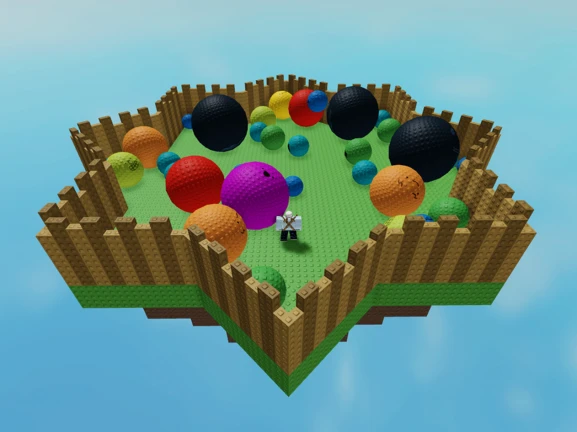
Merge Classic Roblox Script is an utility script hub built around ball list refresh and auto refresh for ball tracking for common Roblox executors. Classic Roblox Script is built for managing balls during merge sessions. After joining a server, the useful first move is refreshing the ball list, checking the search box, and selecting the ball you want to handle. The interface tracks balls from the workspace folder, keeps the selected name visible, and highlights the chosen part so you do not lose it in a crowded are
The early journey is about reducing walking and manual dragging. A selected ball can be sent to your character, placed at the mouse position, brought directly in front of you, or returned to its saved original position. Those controls fit the first few minutes of a run, when scattered balls slow down the next merge.
Tools That Match the Merge Routine
- Search and refresh: Filter the ball list, refresh it manually, or leave auto refresh enabled as new parts appear.
- Single ball placement: Move one chosen ball to yourself, your cursor, its starting spot, or a close front position.
- Mass grouping: Use identical merging, stacking, circle placement, or orbit mode when repeated organization becomes the main task.
- Player pathing: Teleporting through tracked balls can help visit many ball positions quickly without searching the map manually.
Use the Current Loader
Run the loader after you are fully spawned so the ball folder, character, and mouse position are available.
Timing Notes for Repetitive Merging
Mass controls are best used after the list has settled, not while balls are still spawning or moving. The build zeroes ball velocity when moving parts, which helps formations stay readable. For precision, use mouse teleport on one ball first, then apply stack or identical merge once you know the selected part is correct.
Hotkeys are present for fast actions such as bring selected, bring all, stack, orbit, refresh, and close. Keep the window minimized when you only need repeat commands, and reopen it for searches or baseplate work. The custom baseplate option is most useful when you want a cleaner area for arranging balls before the next merge cycle.
- Field note
- Avoid mixing orbit and stack commands at the same moment, since both are trying to control ball positions.